 Use it, Learn it
Use your own AI key
Connect your own Claude, OpenAI, Gemini, DeepSeek or other account. The app's learning features stay free with no time limit.
The app needs an AI service to translate and explain. You have two choices:
- The built-in AI: sign in with your email and it just works. Free accounts include starter AI to try everything; Pro includes everyday use.
- Your own key: an account with an AI company. You pay them directly, usually a few cents a day for everyday messages, and you can keep using the Free plan with no time limit.
1. Get a key
Create an account with one of these providers and create an API key (a long password that starts with something like sk-):
- Anthropic (Claude): recommended; this is what the app is tuned for.
- OpenAI
- Google Gemini
- DeepSeek, Qwen, Kimi or GLM: easier to pay for in mainland China.
- Others such as OpenRouter, Groq or Mistral, or a model running on your own computer with Ollama.
Most providers ask you to add a small amount of credit, for example $5, which lasts a long time for everyday messages.
Keep your key private. Don’t share it or post it anywhere. The app stores it in your computer’s secure keychain and sends it only to that provider.
2. Add it to the app
- Open ⚙ Settings and scroll to AI providers.
- Find your provider, paste the key into API key and click Save. The label changes to Key saved.
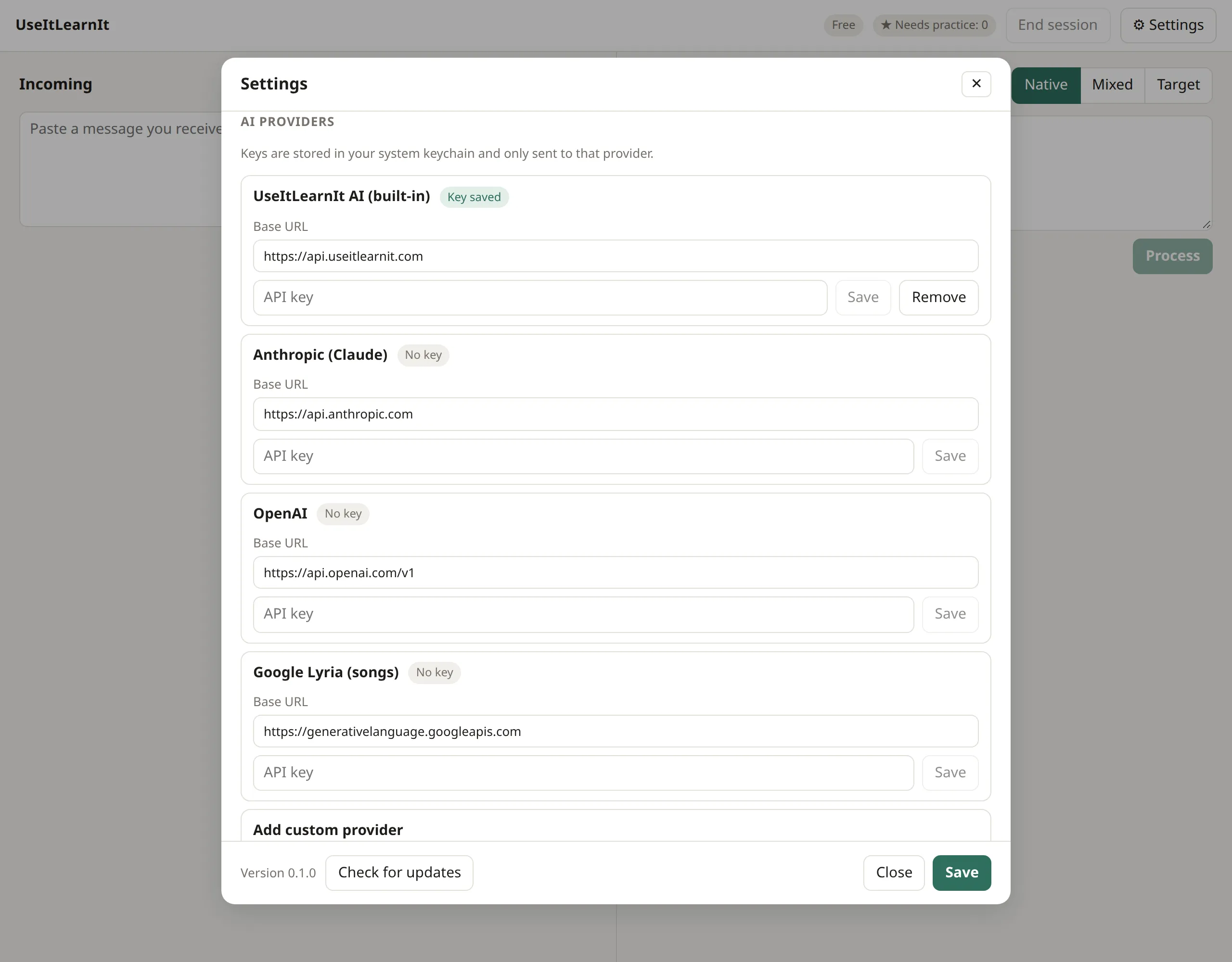
Setting up for the first time? On the sign-in step, click I have my own API key, paste an Anthropic key and click Save and continue. The app sets everything up for you.
3. Choose which model does what
Scroll to Which model does what. For each task, choose your provider and model:
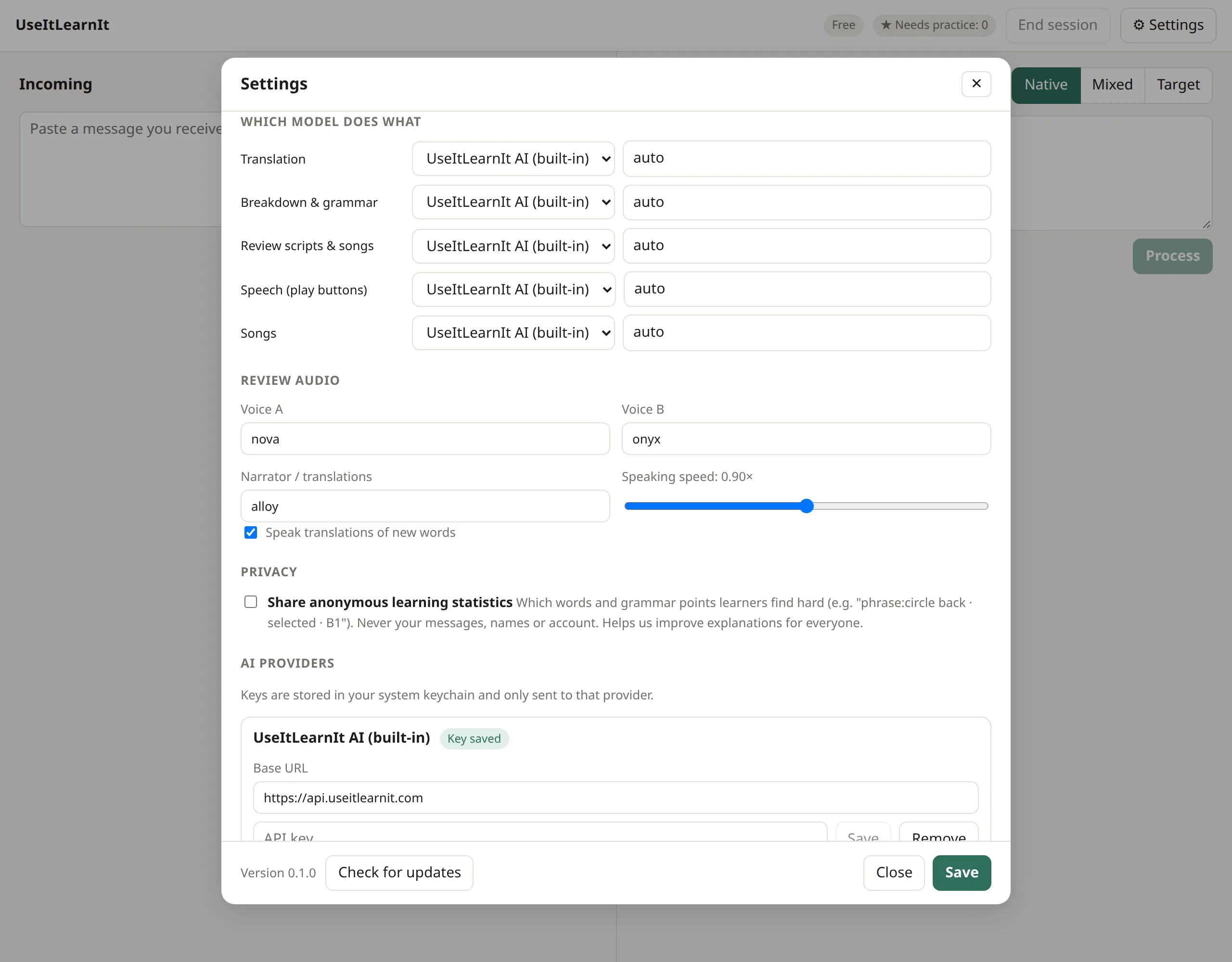
- Translation and Breakdown & grammar: a fast, low-cost model is best (for example claude-haiku-5-5).
- Review scripts & songs: a stronger model writes better stories and lyrics (for example claude-opus-5-5).
Click Save at the bottom.
Songs and speech with your own keys
- Songs: add a Google Gemini key under Google Lyria (songs), then choose it for Songs.
- Speech: choose a speech provider under Speech (play buttons), such as OpenAI.
Or keep using the built-in service for songs and speech with your credits while your own key handles text.
Still stuck? Email us and a real person will help. support@useitlearnit.com · Support