 Use it, Learn it
Set up in four steps
Choose your languages, check your level and sign in. It takes about two minutes.
The first time you open the app, it walks you through four short screens. You can change everything later in ⚙ Settings.
Step 1: Your languages
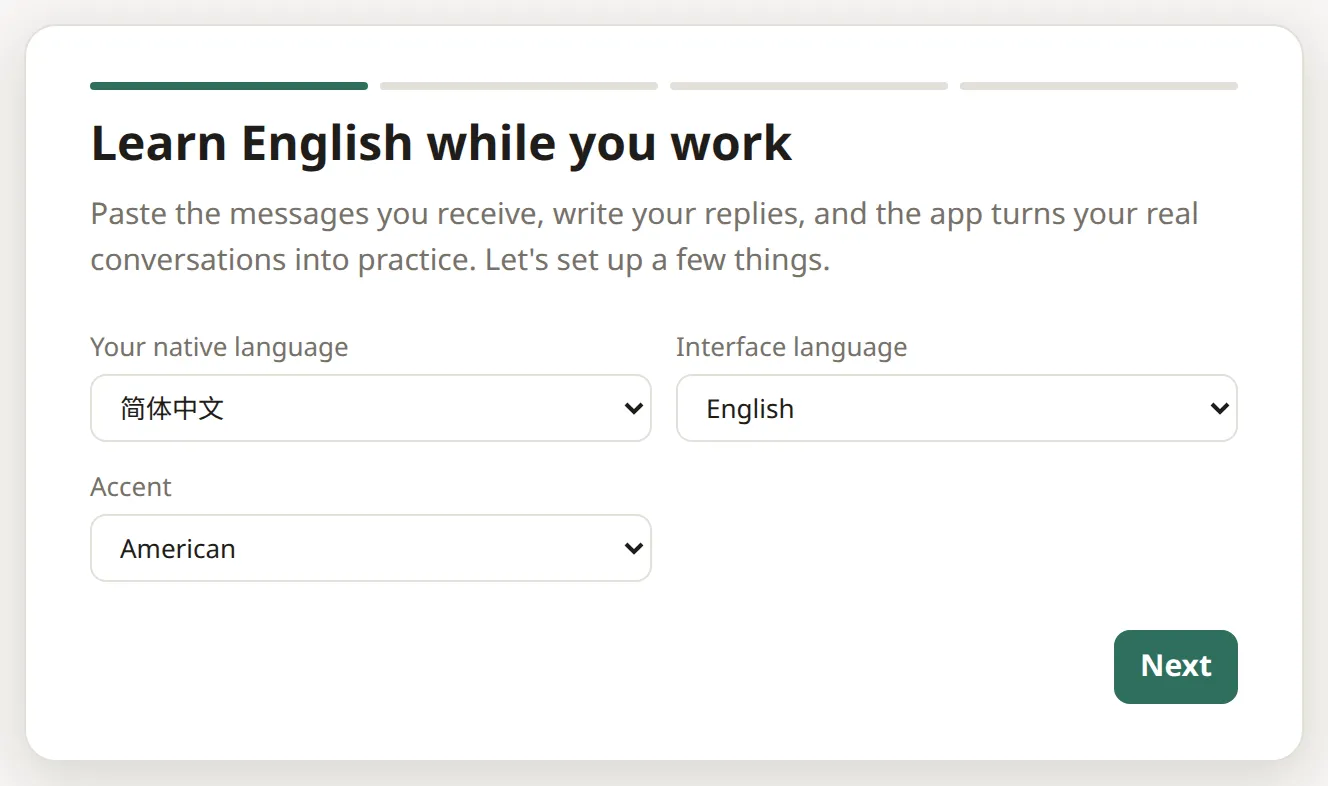
- Your native language: explanations and translations will be in this language.
- Interface language: the language of the app’s buttons and menus.
- Accent: American or British English, for spelling, pronunciation and voices.
Click Next.
Step 2: Your level
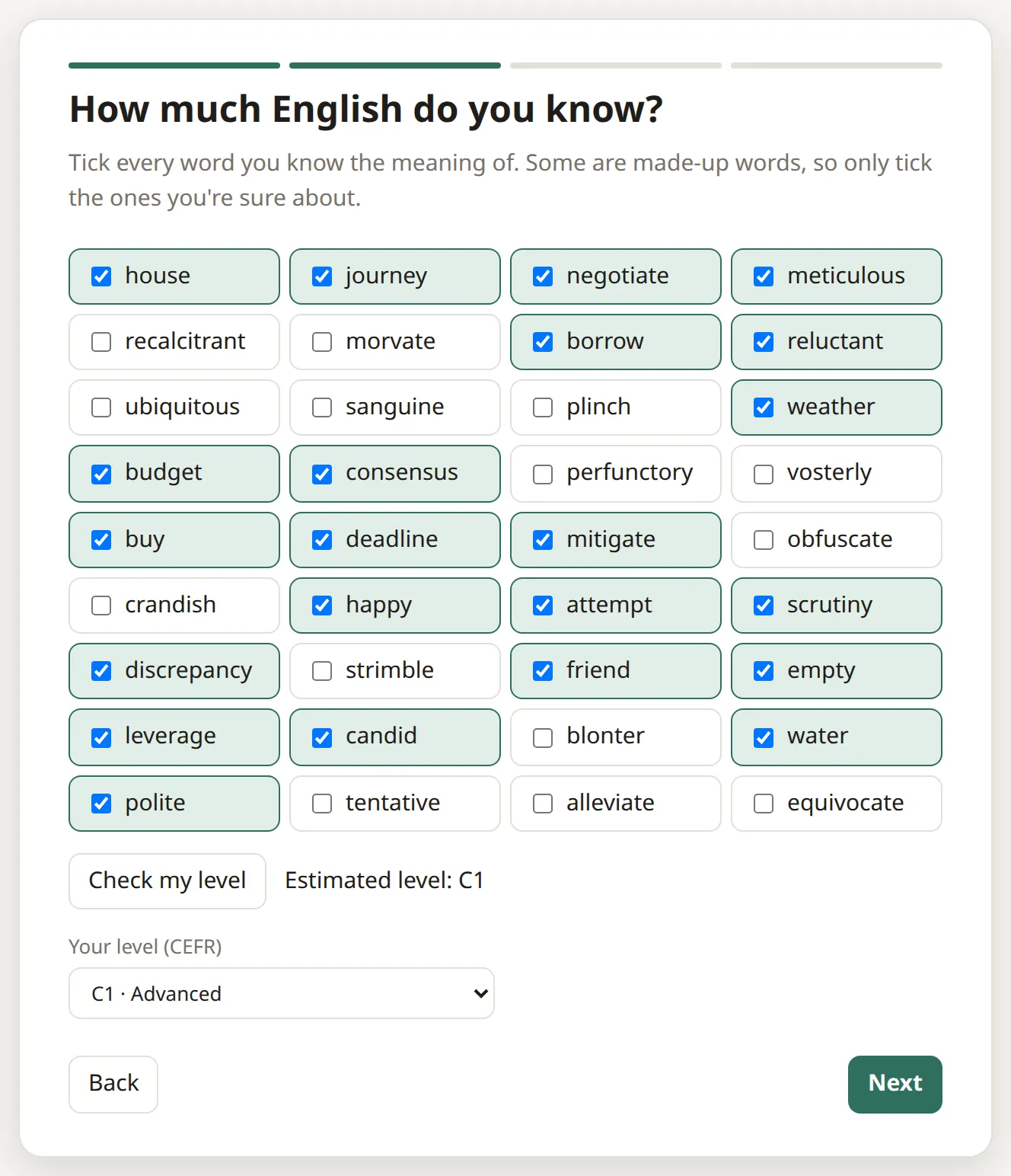
Tick every word you know the meaning of, then click Check my level.
Some of the words are made up, like plinch or vosterly. They’re there to catch guessing, so only tick the words you’re sure about.
The app suggests a level from A1 (beginner) to C2 (proficient). If it feels wrong, just pick a different level from the list. Your level decides which words count as “already known”, so your review audio is about 80% familiar and 20% new.
Step 3: Sign in
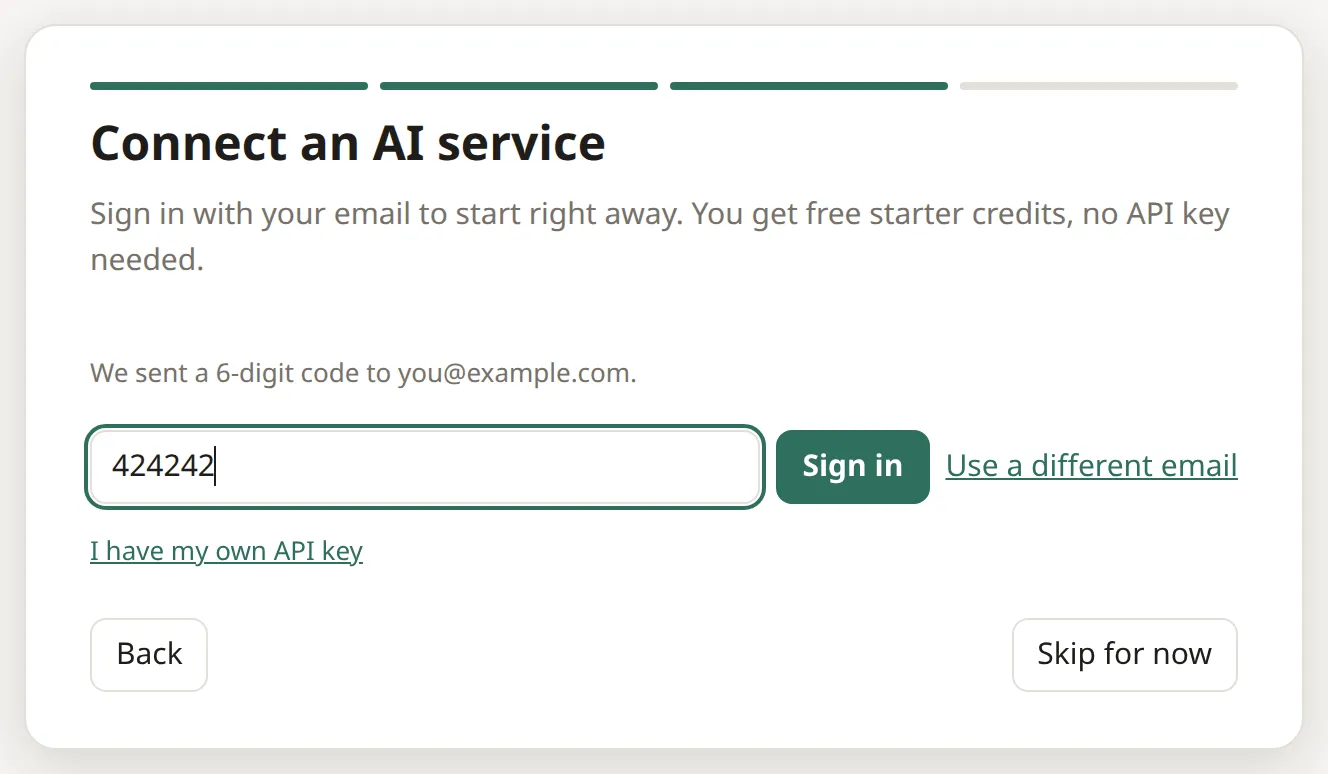
- Type your email address and click Send code.
- Check your email for a message from signin@mail.useitlearnit.com with a 6-digit code. (Not there after a minute? Look in your spam or promotions folder.)
- Type the code and click Sign in.
There’s no password to remember. Signing in gives you the built-in AI and your free starter credits.
Already have an AI key from Anthropic, OpenAI or another provider? Click I have my own API key instead. See Use your own AI key.
Step 4: You’re ready
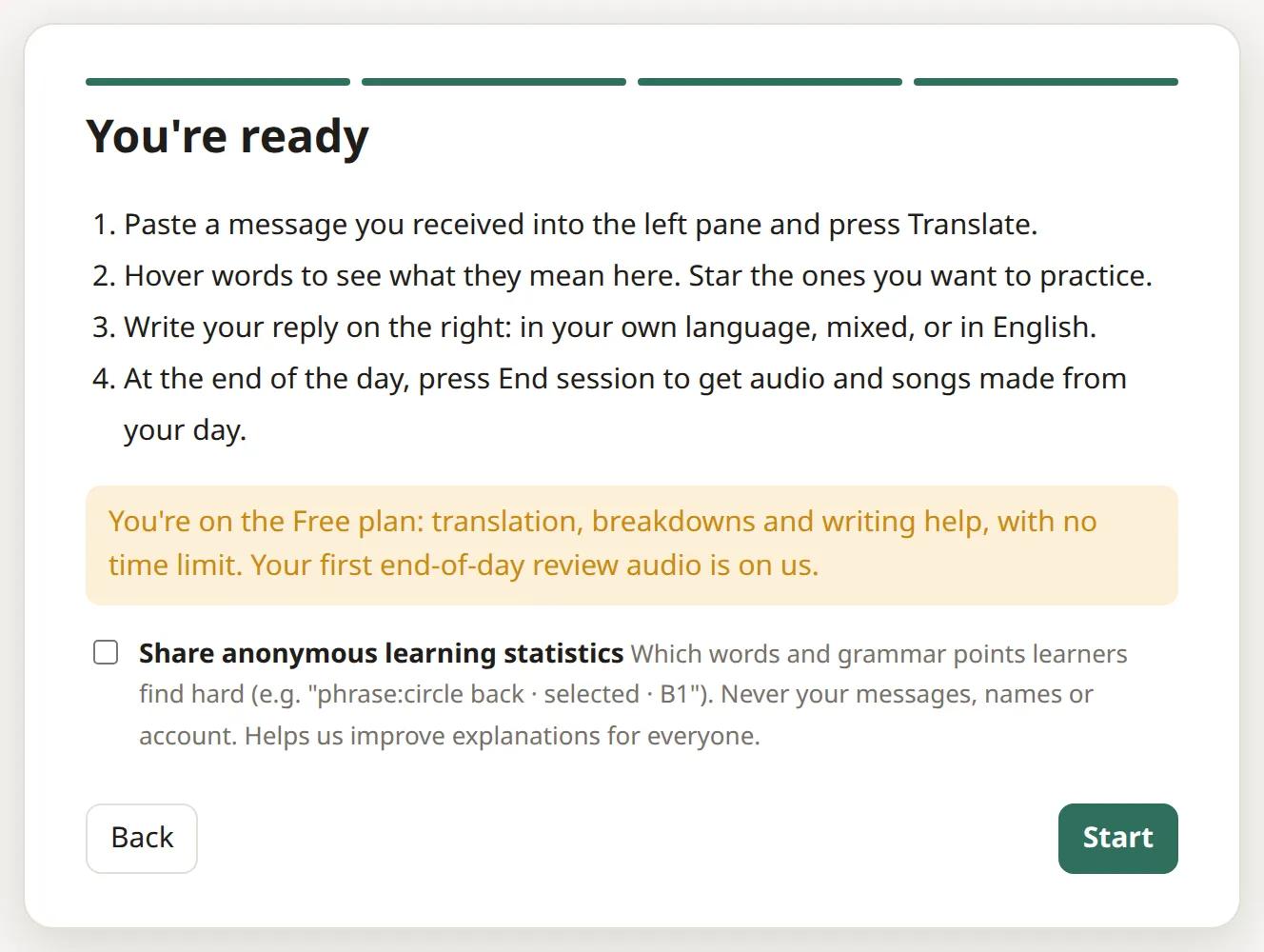
You’ll see a short summary of how the app works. There’s also a choice to share anonymous learning statistics: which words and grammar learners find hard, never your messages or name. It’s off unless you tick it.
Click Start, and you’ll see the main screen:
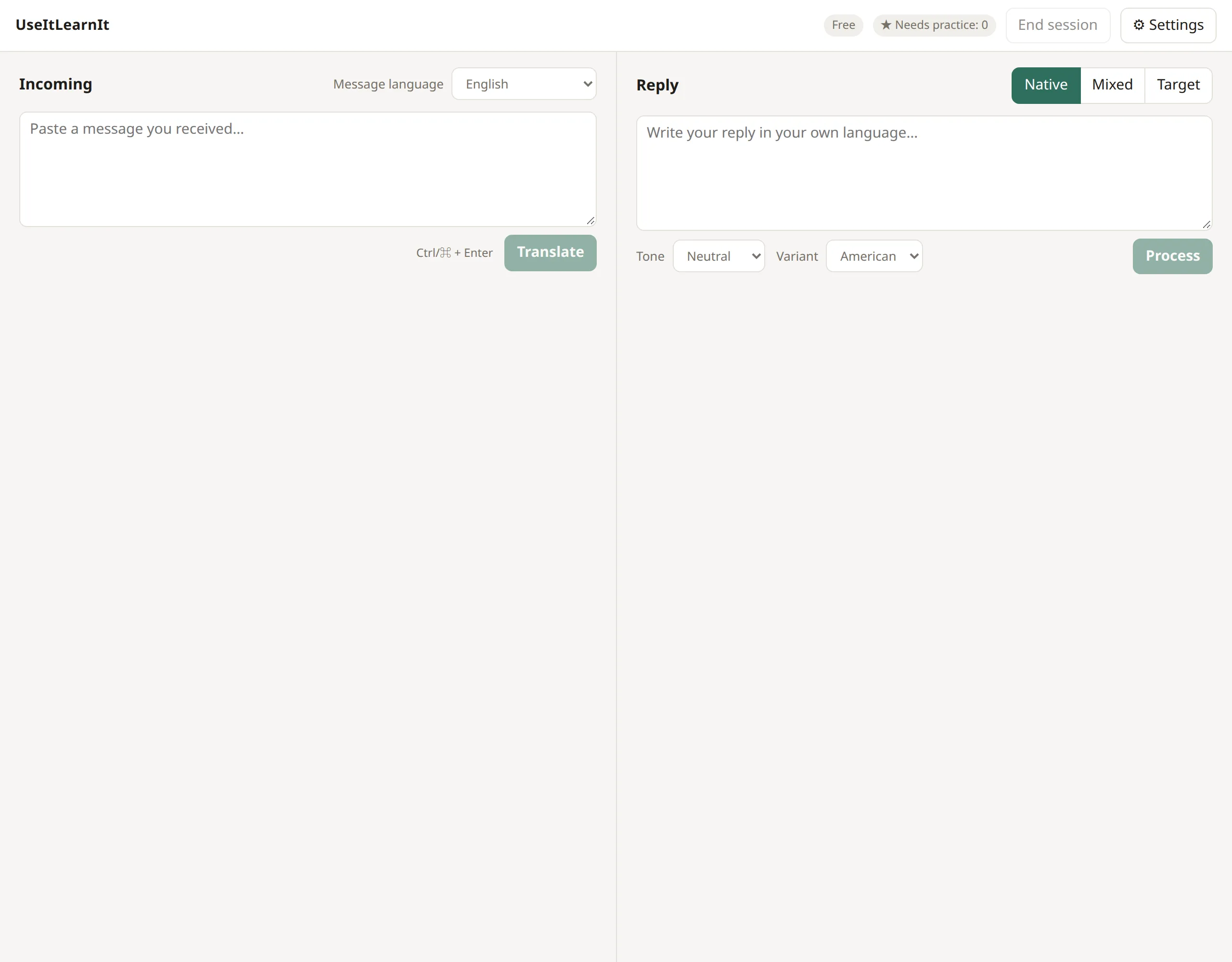
- Incoming (left): paste messages you receive to understand them.
- Reply (right): write your answers.
- At the top: your plan, the ★ Needs practice counter, End session and ⚙ Settings.
Next: understand a message.
Still stuck? Email us and a real person will help. support@useitlearnit.com · Support